Codec
A codec is the method used to encode and decode video data. Different codecs balance image quality, file size, and the amount of processing power required to play or edit the video.
Compression
Video files contain enormous amounts of data, so most video is compressed to reduce file size. H.264 and H.265 use heavy compression and are excellent for recording and delivery, but formats such as ProRes or DNxHR retain more image information and are often better for intensive editing and color correction.
Modern computers can usually edit H.264 and H.265 directly, but highly compressed video can require more processing power than a larger, less-compressed editing format.
Container
A container is the file that holds the encoded video, audio, and other information. Common containers include .MOV, .MP4, and .MKV. The container and codec are not the same thing—a .MOV or .MP4 file can contain video encoded with several different codecs.
Frame Rate
Frame rate is the number of individual images recorded each second, measured in frames per second (fps). Common rates include 24, 30, and 60 fps; higher frame rates capture motion more smoothly and can be used to create slow motion.
Bitrate
Bitrate is the amount of data used to store each second of video. A higher bitrate generally preserves more image information but creates a larger file.
Aspect Ratio
Aspect ratio describes the proportions of the video frame. Standard HD and 4K video are usually 16:9, while vertical phone video is commonly 9:16.
Color Depth
Bit depth describes how many shades of color a video can record. Most standard video is 8-bit, while 10-bit video records much finer color differences and provides more flexibility for color correction.
Progressive vs. Interlaced
Most modern video is progressive, meaning every frame contains a complete image. Older video formats may be interlaced, where each frame is divided into alternating sets of lines. For new work, progressive video is generally preferred.

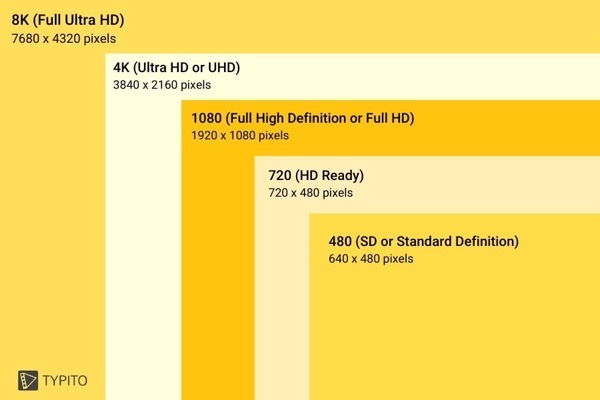
| Resolution Type | Common Name | Aspect Ratio | Pixel Size |
| SD (Standard Definition) | 480p | 4:3 | 640 x 480 |
| HD (High Definition) | 720p | 16:9 | 1280 x 720 |
| Full HD (FHD) | 1080p | 16:9 | 1920 x 1080 |
| QHD (Quad HD) | 1440p | 16:9 | 2560 x 1440 |
| 2K video | 1080p | 1:1.77 | 2048 x 1080 |
| 4K video or Ultra HD (UHD) | 4K or 2160p | 1:1.9 | 3840 x 2160 |
| 8K video or Full Ultra HD | 8K or 4320p | 16∶9 | 7680 x 4320 |
iPhone Video Recording Cheat Sheet
| Recording mode | Resolution | Frame rates | Notes |
|---|---|---|---|
| Standard Video | 720p — 1280×720 | 30 fps | Smallest files |
| 1080p HD — 1920×1080 | 25*, 30, 60 fps | Good general-purpose choice | |
| 4K UHD — 3840×2160 | 24, 25*, 30, 60 fps | Highest standard resolution | |
| 4K UHD | 100/120 fps | Only certain newer Pro models/cameras | |
| Slo-Mo | 1080p | 120 or 240 fps | Played back slower than recorded |
| 4K | 120 fps | Newer Pro models only | |
| Cinematic | 1080p | 30 fps | Simulated shallow depth of field |
| 4K | 24 or 30 fps | Supported models | |
| Action Mode | up to 2.8K | up to 60 fps | Heavy stabilization; crops image |
| Spatial Video | 1080p | 30 fps | Supported recent models; intended for spatial/VR viewing |
| ProRes | 1080p | 25, 30, 60 fps | Pro models; very large files |
| 4K | 24, 25, 30 fps | Pro models | |
| 4K | 60/120 fps | Certain Pro models; may require external USB-C storage | |
| Time-Lapse | automatic | automatic | Camera determines capture interval/frame rate |
*25 fps appears when PAL formats are available/enabled.
File format / codec
| Setting | What it means |
|---|---|
| H.264 / “Most Compatible” | Larger files, but easiest to use on different computers/software |
| HEVC / H.265 / “High Efficiency” | Smaller files at similar quality; newer codec |
| HDR / Dolby Vision | Greater brightness/color range; can complicate editing and projection |
| Apple ProRes | Much less compressed, intended for editing; files can be enormous |
| ProRes Log | Flat-looking image designed for color grading; supported Pro models |
For most class projects, use 1080p HD at 30 fps. This gives you good image quality without creating unnecessarily large files. Use 24 fps if you want a more cinematic look, and 60 fps when shooting fast action or footage you may want to slow down. Use 4K only when you need extra resolution for cropping, reframing, or projection. For standard assignments, avoid ProRes, Log, HDR, 120 fps, and 240 fps unless the project specifically calls for them, since they create larger files or require additional editing and color-correction steps.